Microscape · UX Design & Design Systems · Aug 2024–Jan 2025
Cardioscape
Role: Sole UX/UI Designer
Collaborators: Engineering lead, CEO/product lead, developers
Deliverables: UX audit, tokenized design system, full-product UX across Gallery, Studio Theatre, and workspace/project management
Overview
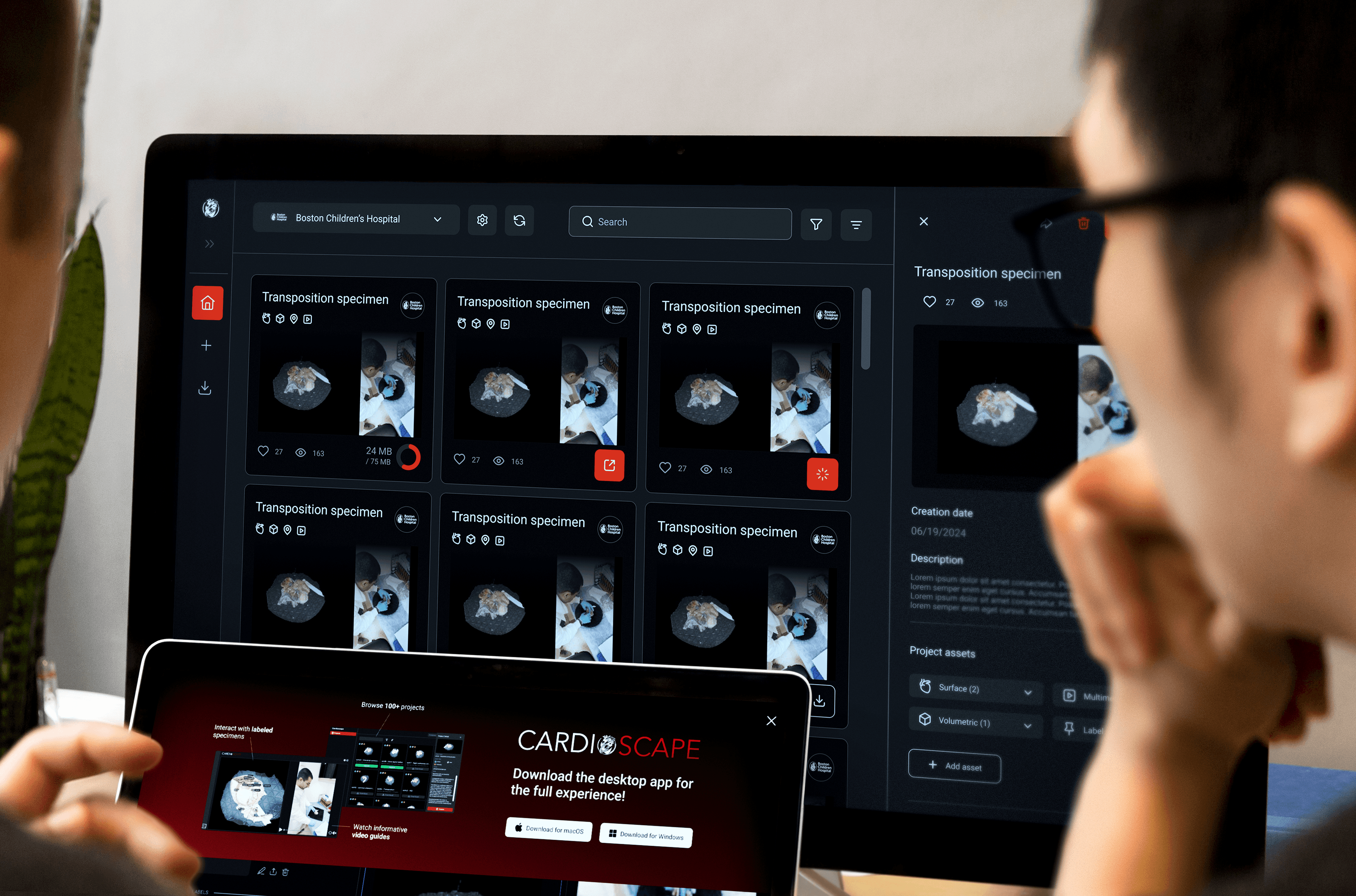
Cardioscape is a WebGL-based 3D visualization and training platform for cardiologists and medical students. It lets surgeons and learners load, annotate, and study complex cardiac specimens, imaging data, and surgical recordings in preparation for procedures.

Cardioscape in Action
Cardioscape runs in two modes:
Studio, a full-featured environment for power users like researchers and educators who build and configure surgical cases, and Standard, a pared-down view for end users like medical students who consume those cases. The existing interface had been built incrementally by engineers without a design system, leaving the product visually inconsistent and, in places, difficult to use.
I joined as the sole designer with a broad mandate: improve usability, build a scalable design foundation, and design new features across the entire platform. In five months, that meant:
A UX audit identifying 27 issues across accessibility, interaction, and visual consistency with a prioritized remediation roadmap
Cardioscape's first tokenized design system, giving the engineering team a shared visual language to build from
End-to-end UX across every surface of the product: Gallery, Studio Theatre, project and workspace management, login, onboarding, and admin
Part 1: Diagnose Before Designing
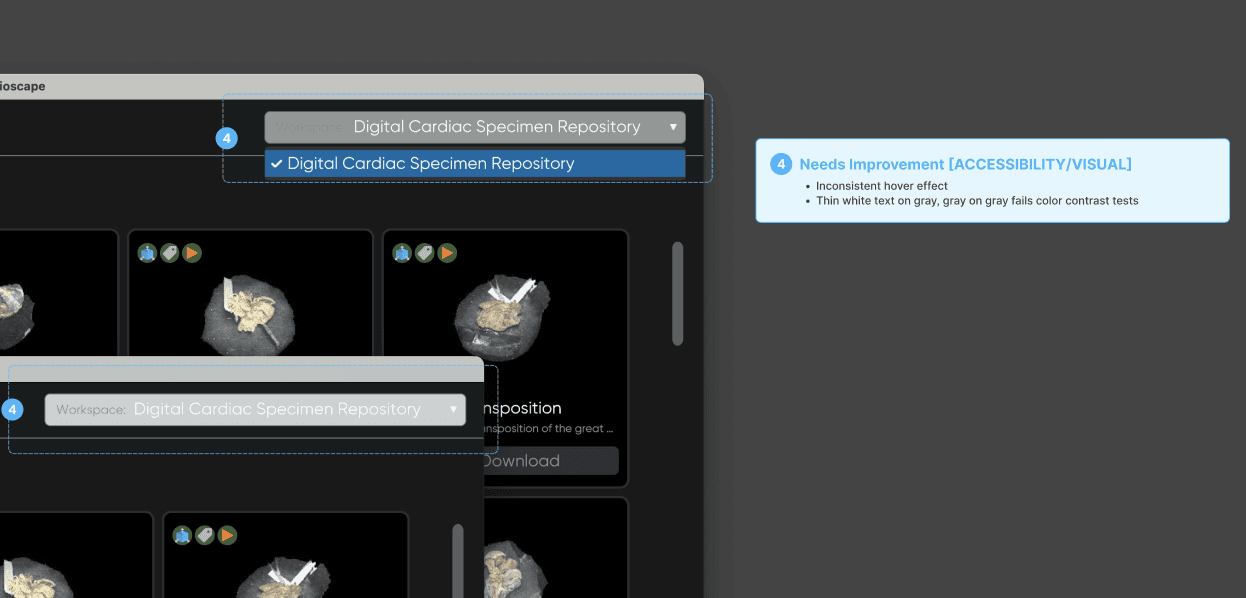
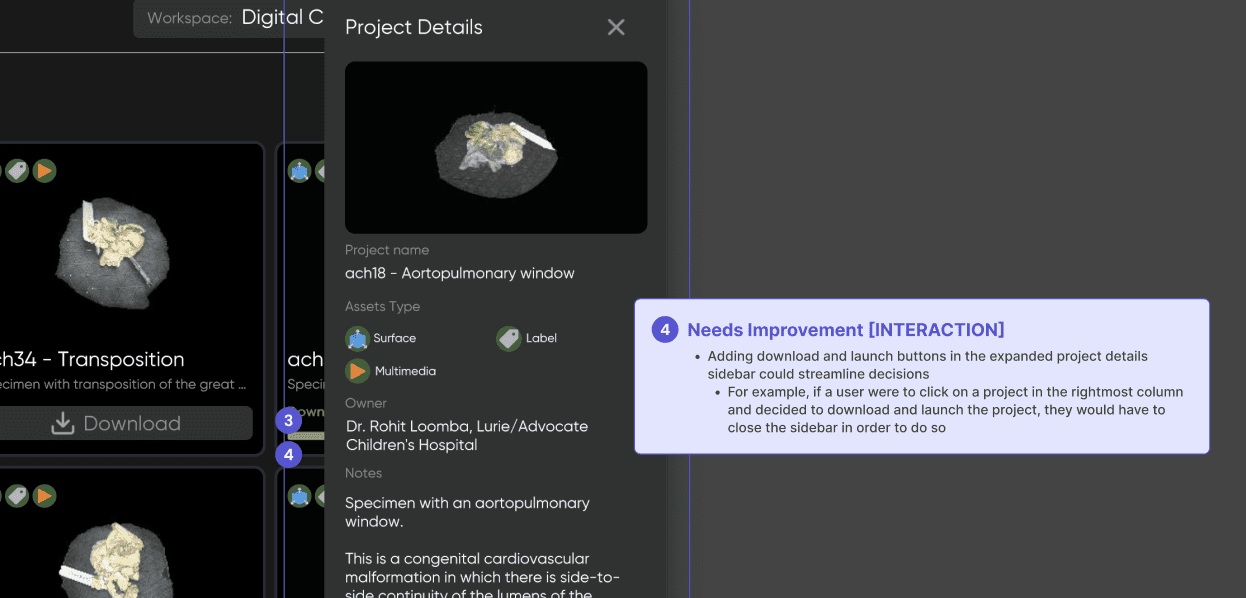
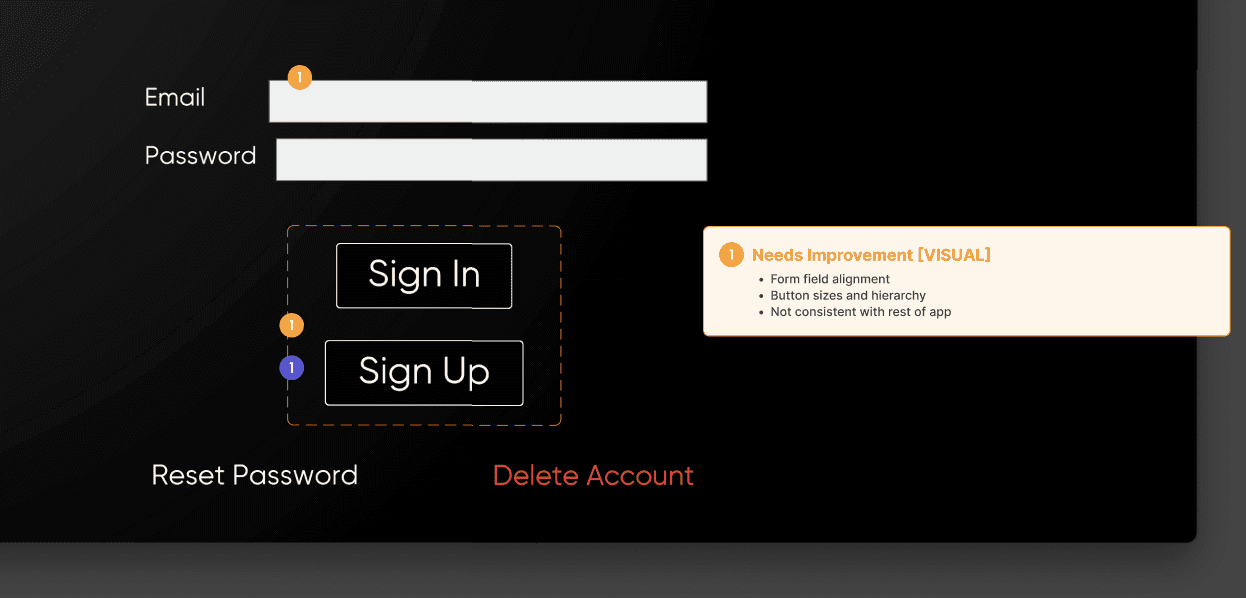
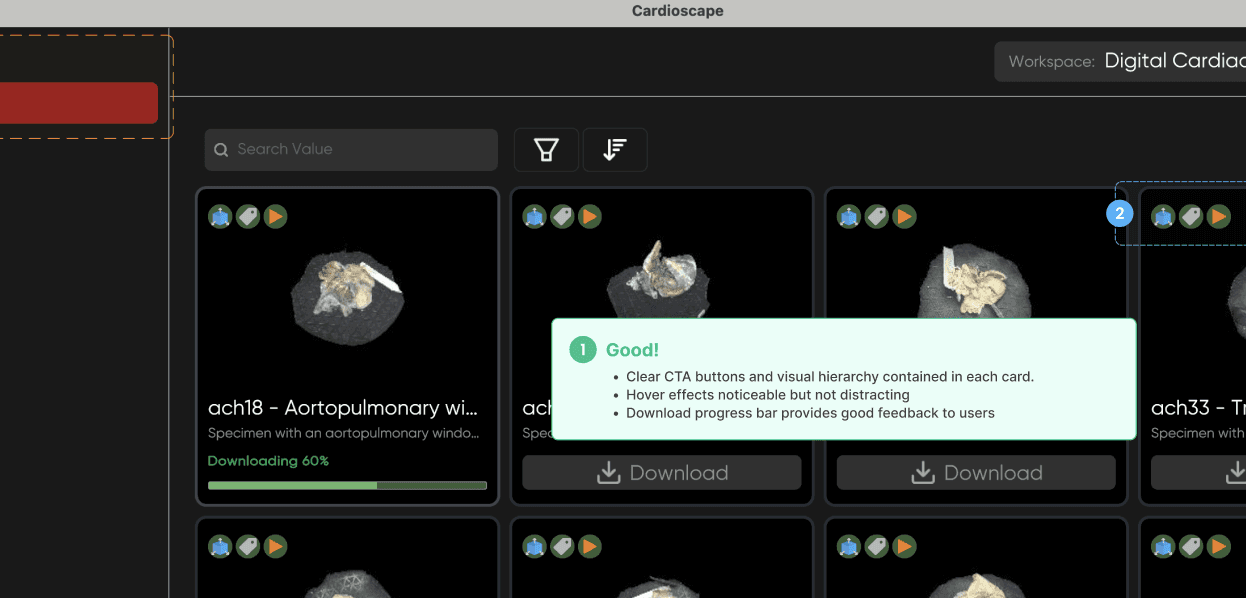
My first task was to understand exactly how bad the problem was before proposing any solutions. I ran a full UX audit of the existing platform, testing the primary user flow from sign-in through browsing, downloading, and launching a project in the Standard app.
Each issue in the audit came with a tag, a severity rating, and a suggested fix. The goal was to give the team a prioritized action plan and to demonstrate that I understood the product deeply enough to improve it. This was a map of what we needed to solve together.
I categorized every issue I found across three categories, with a priority order for remediation:
Part 2: Build the Foundation
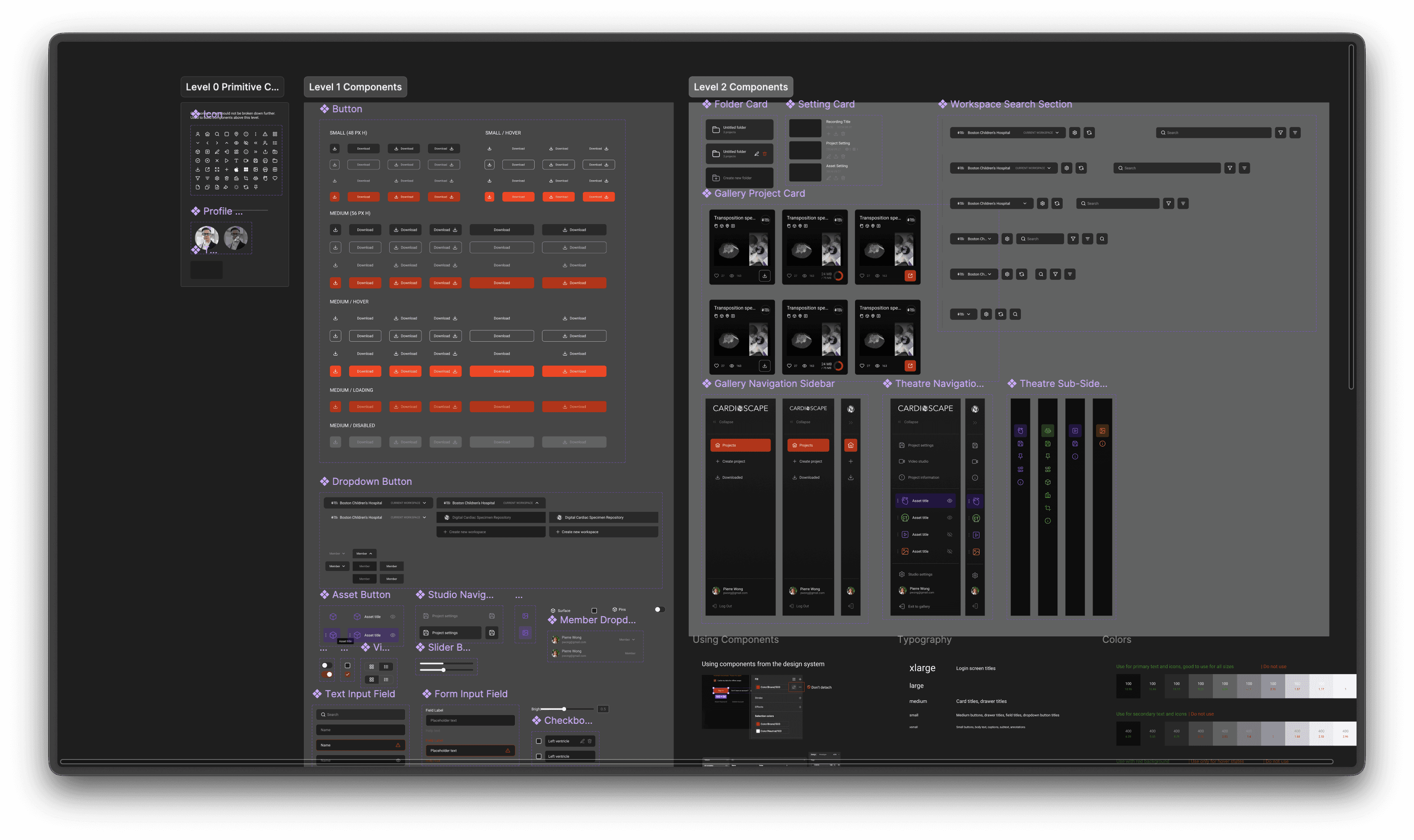
The existing codebase referenced a third-party mobile UI kit that had been adapted for web, which contained far more components than the product needed, in a format that didn't match the platform's actual design patterns. Rather than patch it, I built a purpose-built design system from scratch.
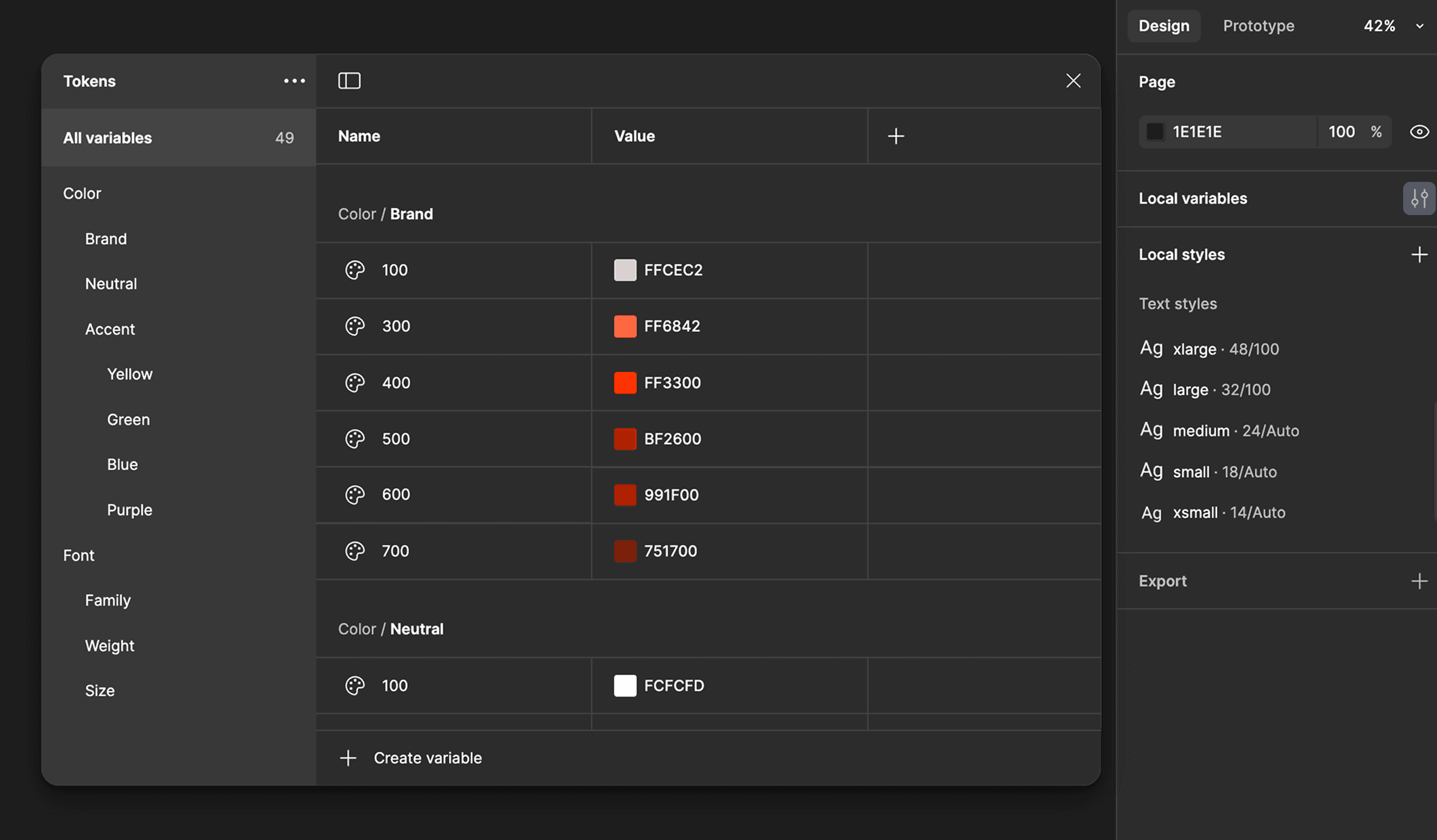
Tokens first
I started with a global color and type tokens, as well as spacing rules that could be applied consistently across the platform's three main surfaces: Gallery, Studio Theatre, and the project management layer.
When the team needed to adjust the depth hierarchy in the Studio sidebar, changing a token updated every component that referenced it, rather than requiring a designer to hunt down every instance manually.
Snapshot of Token System
Components that matched how the product actually worked
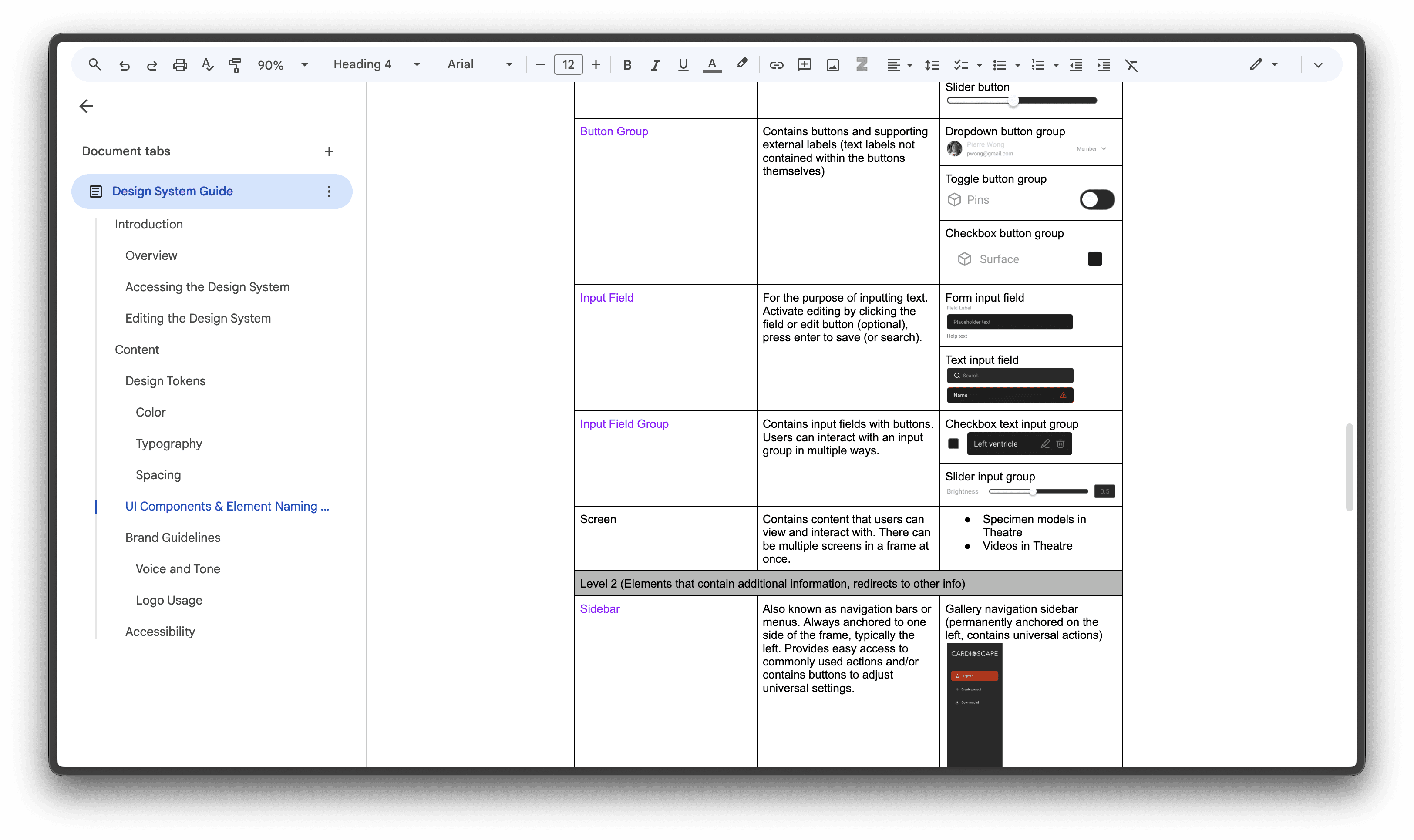
I reviewed the existing interface to identify which patterns recurred across surfaces – drawers, cards, settings panels, toggle controls, icon buttons – and built components around those real use cases rather than generic UI patterns. Each component was published to a shared Figma workspace with documentation covering variants, usage rules, and naming conventions.
I also established naming protocols for components that appeared in both the Studio and Standard versions of the product, where behavior could differ.
The rule: name for full functionality, then use prefixes to specify the version. That way the system could accommodate both without creating two parallel component libraries.
Design System in Figma
Supporting Documentation in Google Docs
Part 3: Design the Product
With the audit complete and the system in place, I moved into feature design across the full platform. Rather than walk through every screen, I want to focus on three problems that required the most deliberate thinking, as each one illustrates a different kind of design challenge the product presented.
Problem 1: Helping users mentally map assets to their settings in a multi-asset environment
The Studio Theatre supports up to 4 assets simultaneously, displayed in a split-screen layout. Assets can be any combination of types – a user might load two 3D cardiac specimens, one volumetric scan, and one recording, or four 3D specimens, or any other mix.
Each asset type comes with its own distinct set of settings. For example, 3D specimens have labeling controls and model viewing options; volumetric scans have histogram and directional light adjustments; recordings have playback controls.
The existing design used a single settings panel whose contents updated based on whichever window the user had clicked last. The problem: that connection was entirely invisible. A user wanting to adjust Asset Type 1's settings had to know to click Asset Type 1's window first – and in a multi-asset environment, it was easy to lose track of which asset was "active," or worse, unknowingly configure the wrong one.
Let's say a user has Asset Types 1 and 2 on their screen. They want to adjust settings for Asset Type 1:
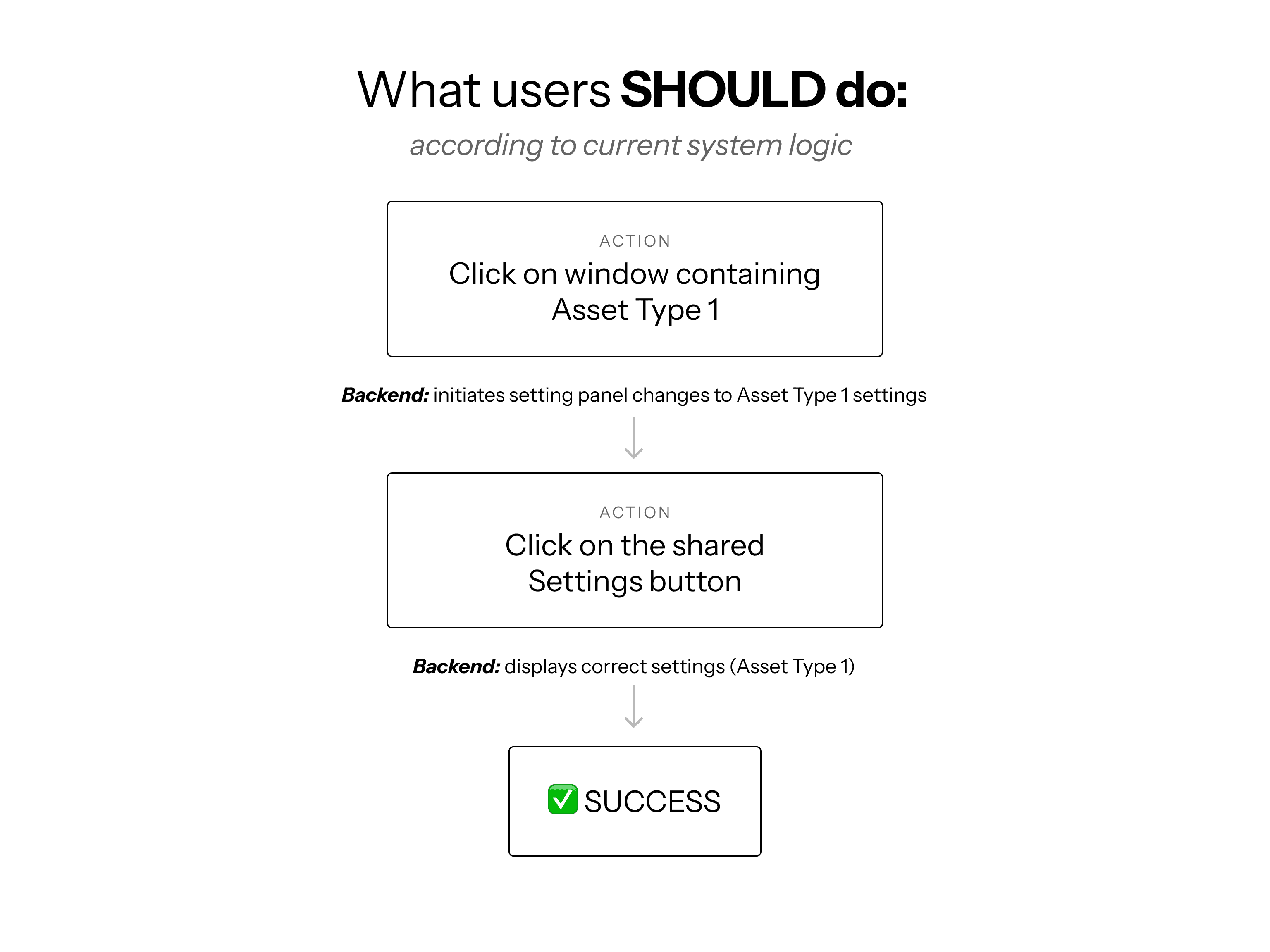
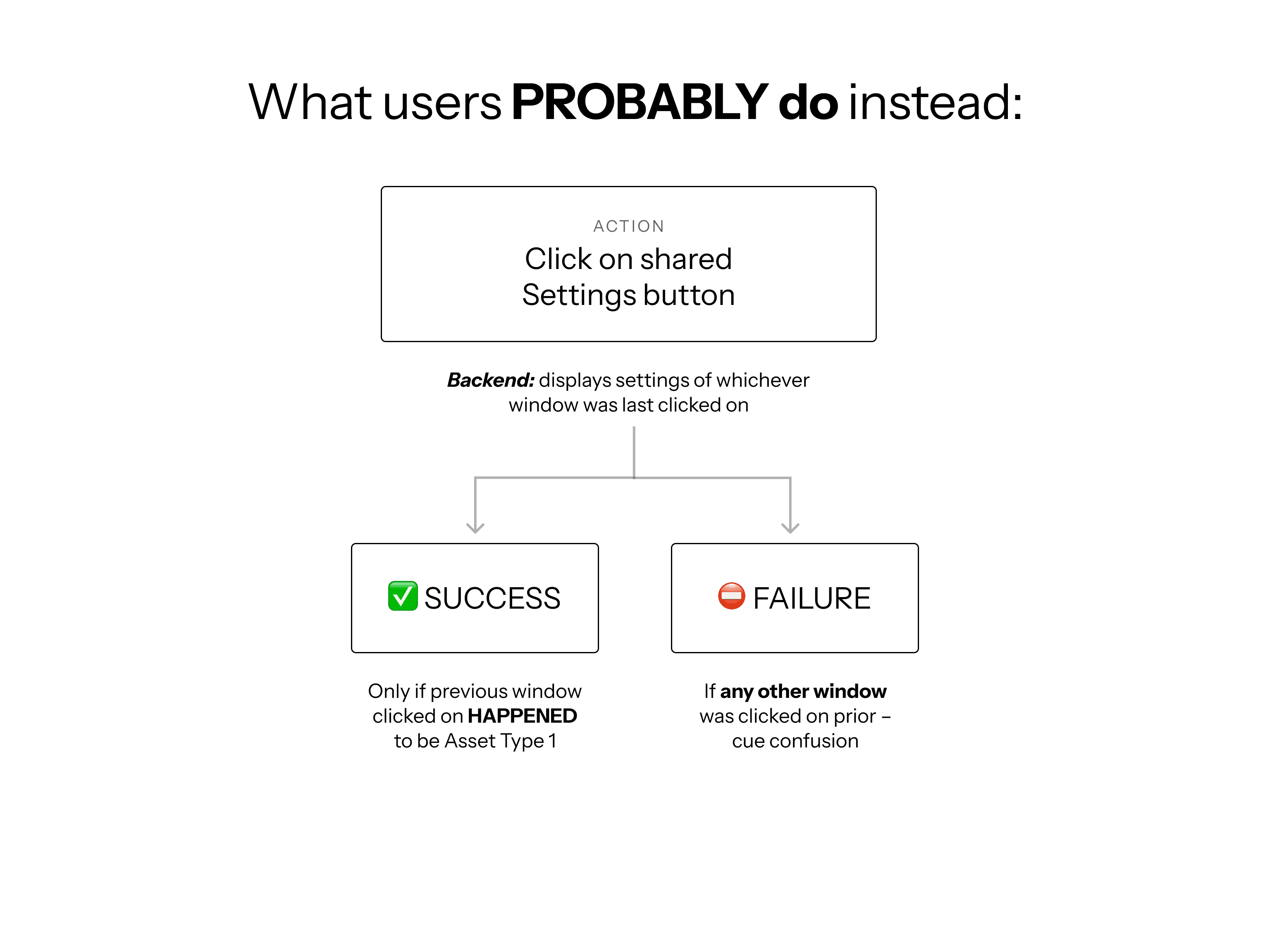
The team proposed keeping one button for Settings but placing it in the left sidebar alongside a list of assets contained in the project. I explored 3 approaches before making my recommendation:
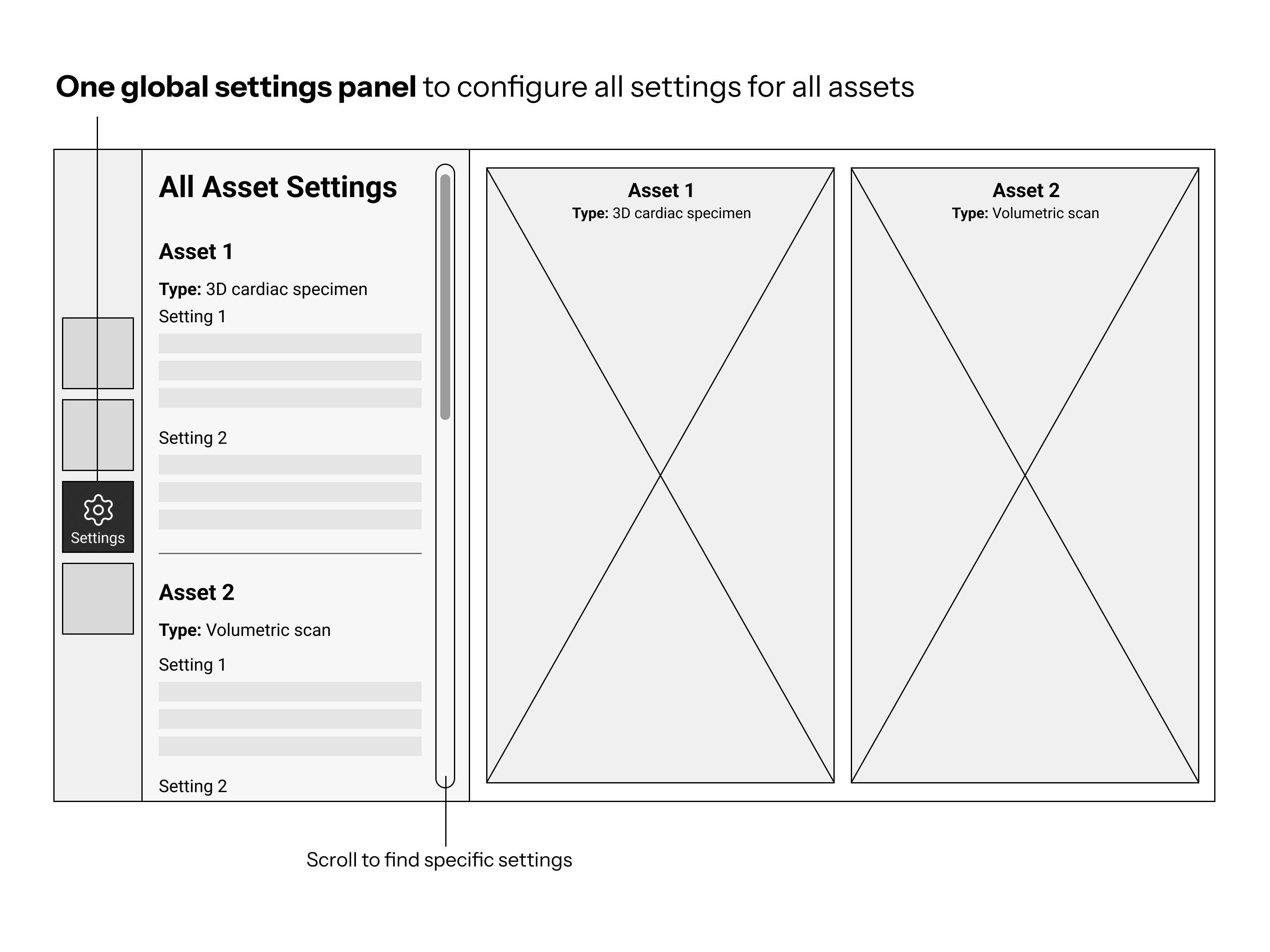
1. One global panel listing settings for ALL assets in a scrollable list
The team's initial idea. Conventional, but created way too much scrolling and searching.
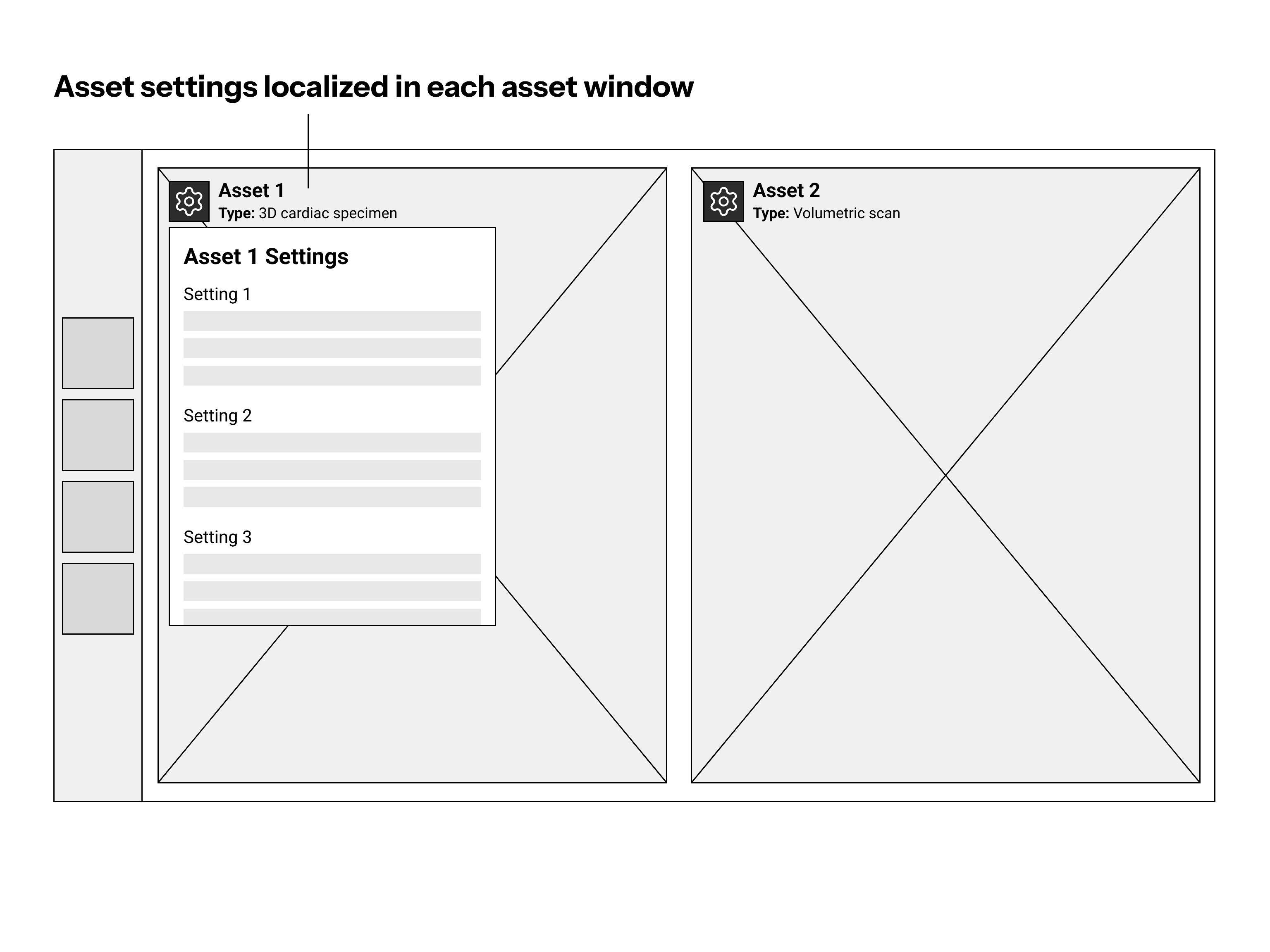
2. Settings localized inside each asset's window
Physically and mentally close to the content, but clutters the window. Users must close the window in order to see the changes made.
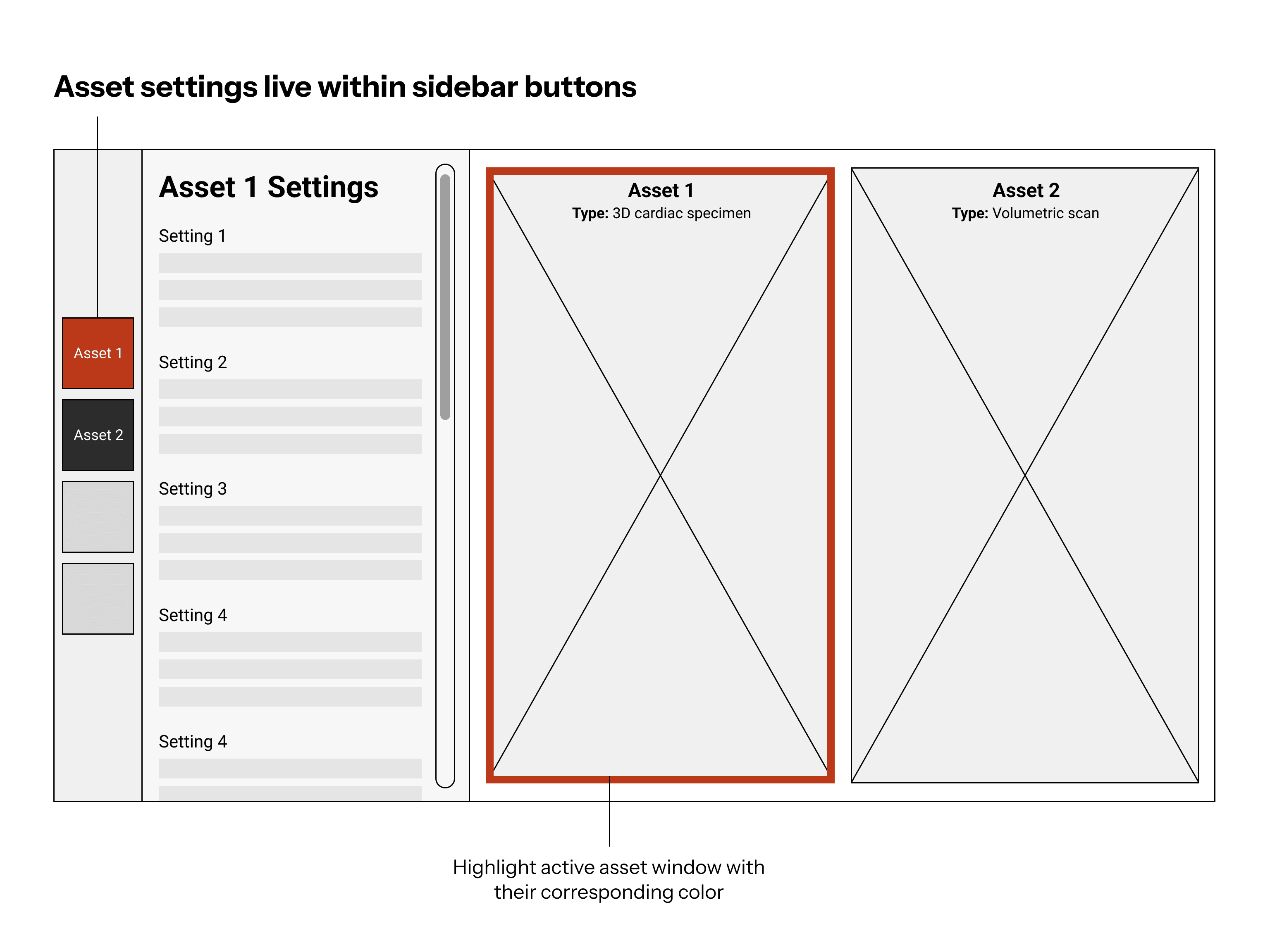
3. Tying asset-specific settings to each asset's icon in the sidebar
Keeps settings clearly tied to the assets without entering the viewer.
Universal settings (project info, metadata, etc) stay pinned separately.
What I Proposed
I recommended the 3rd, sidebar-tied approach. Clicking an asset icon in the sidebar – color-coded by asset type – opens a sub-sidebar showing that asset's settings as a single scrollable list. Users can jump to a specific setting by clicking its assigned icon, avoiding the need to scroll through everything.
Most importantly, users can always see which asset they're configuring and switch between them with one click, making the connection between sidebar and screen explicit rather than implied. On the engineering side, maintaining one settings list per asset was also simpler to implement than swapping discrete panels per setting.

The Proposed Approach
Problem 2: Bridging the gap between backend terminology and user mental models
Users annotate 3D specimens with pins (a line with a marker) and text labels – but in the backend, the entire element is called a single "label."
That mismatch created a UI problem: if the interface treated pins and text as one undifferentiated thing, it couldn't support what users actually wanted to do, which was control them independently.
Users wanted to hide pins without hiding text, adjust pin lengths without touching labels, and edit individual annotations without affecting others. The UI needed to describe the user's intent.
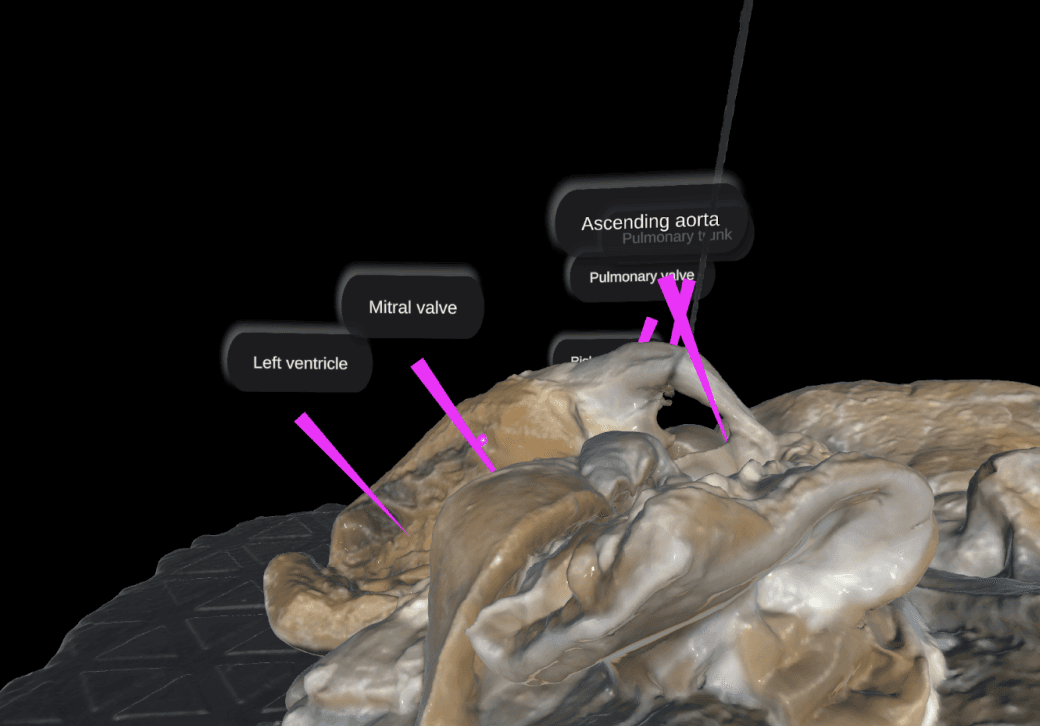
Is this a Pin? A Label? Both???
What I Proposed
Separate pin and text toggles, defaulting to both visible. While this introduced a subtle conceptual split ("pin" as a separate entity from "label"), it was more intuitive for users than a unified toggle that didn't match how they actually wanted to interact with their annotations.
Per-pin settings appear on selection; shift-click enables batch editing of multiple pins.
Global visibility controls live outside the selection state so they're always accessible without implying they affect a specific selection. This resolved the mental model ambiguity of the earlier concept.
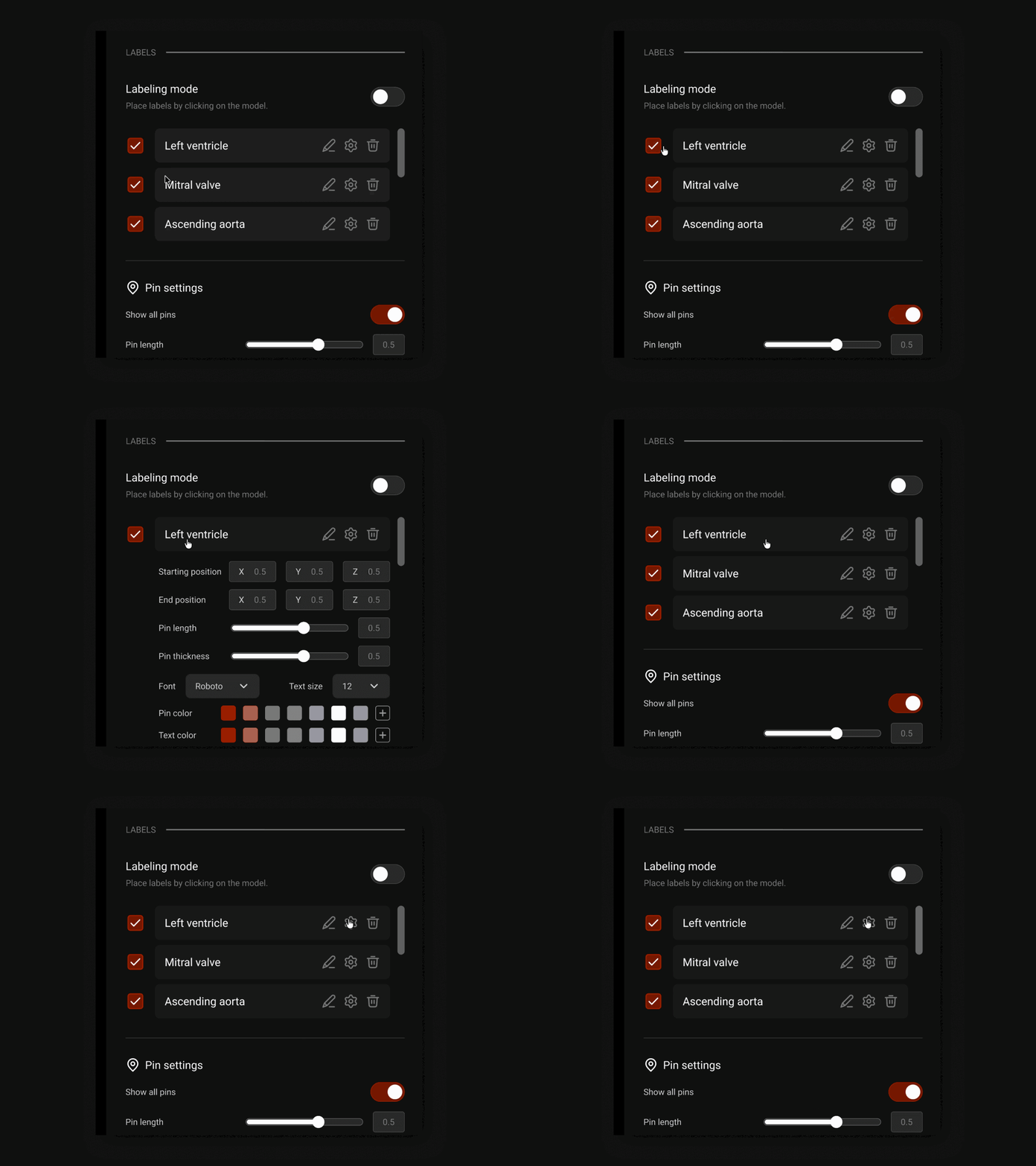
Individual label and pin settings
Click on labels or pins to edit their settings and visibility individually. Shift-click enables batch editing.
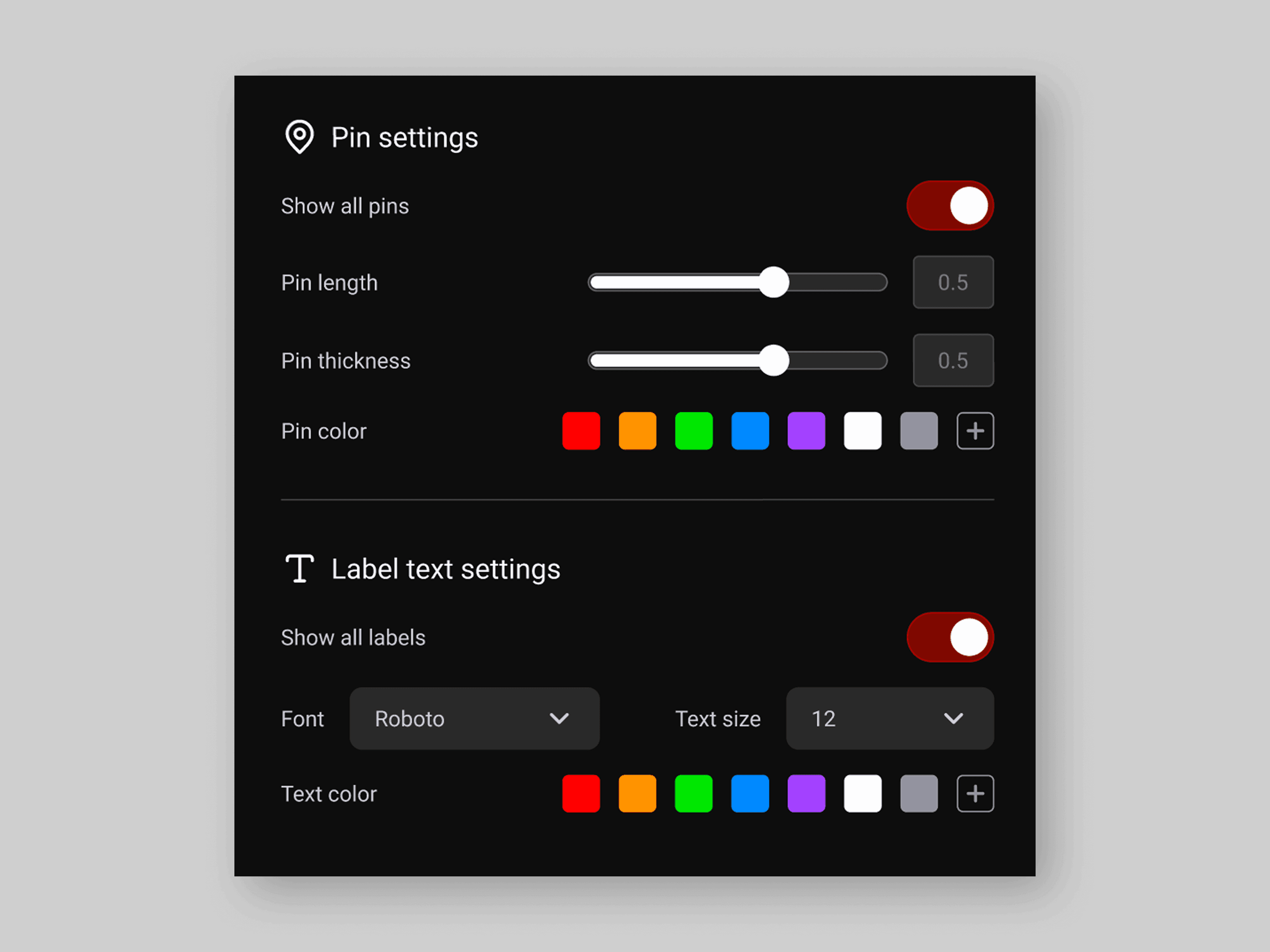
Global controls for quick edits
This lives independently so it's always accessible without implying they affect a specific selection.
Problem 3: Designing a Gallery interface that scales from empty to complex
The Gallery needs to support a range of states: from a brand new, empty workspace to one with dozens of projects organized across folders. The challenge was deciding where to place content management controls (adding projects, folders, workspace settings) so they felt intuitive without overwhelming a screen that needed to stay scannable and focused on browsing.
Clarifying the relationship between workspaces, projects, and navigation
The original Gallery had a hierarchy problem. The action to "Create Project" lived in the sidebar alongside navigation. But since every project must belong to a workspace, placing project creation in the sidebar made it feel unanchored. Where would the project go? The settings icon sitting next to the workspace dropdown compounded the confusion: were these settings for the active workspace specifically, or for workspaces generally?
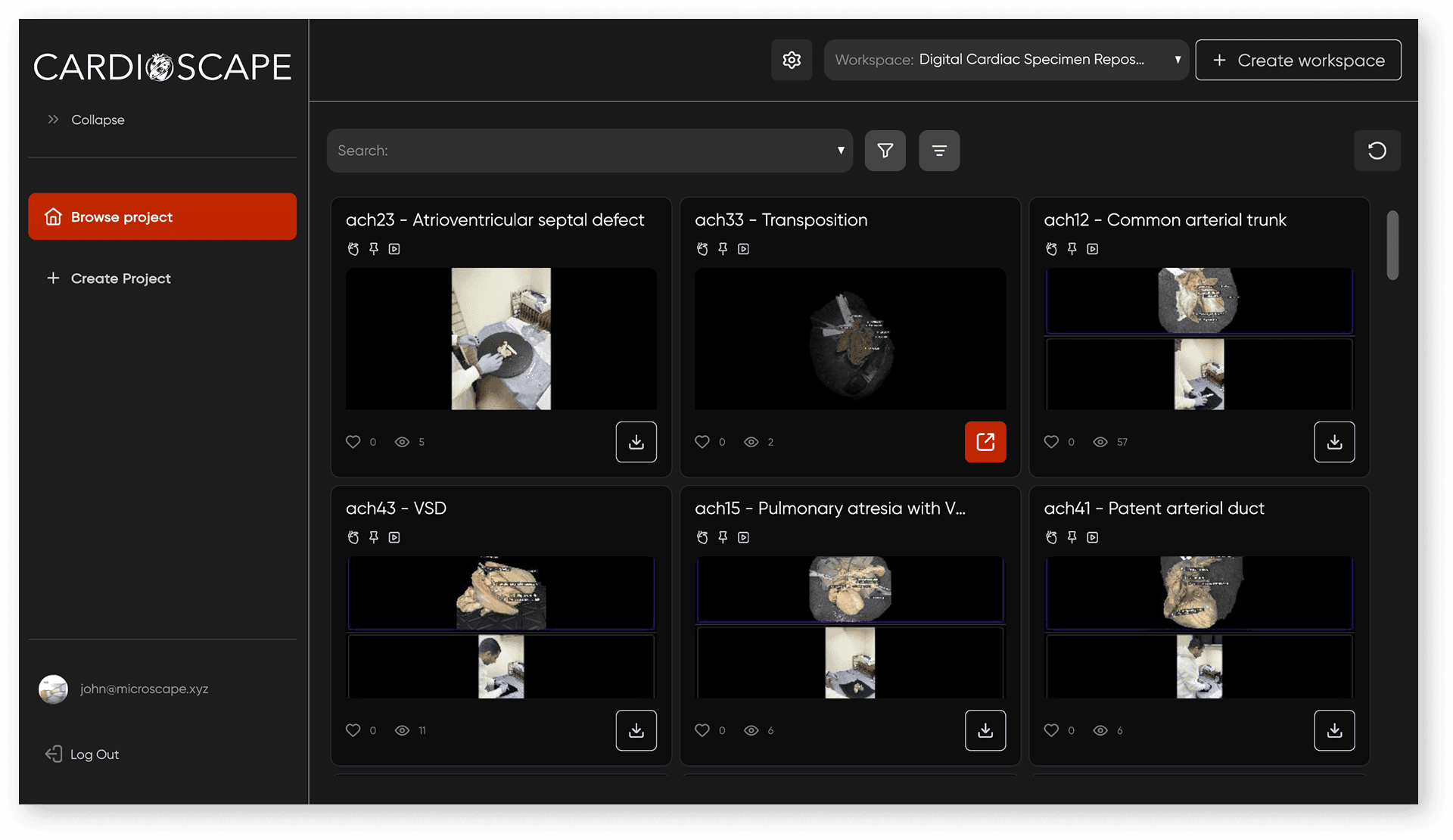
The original gallery
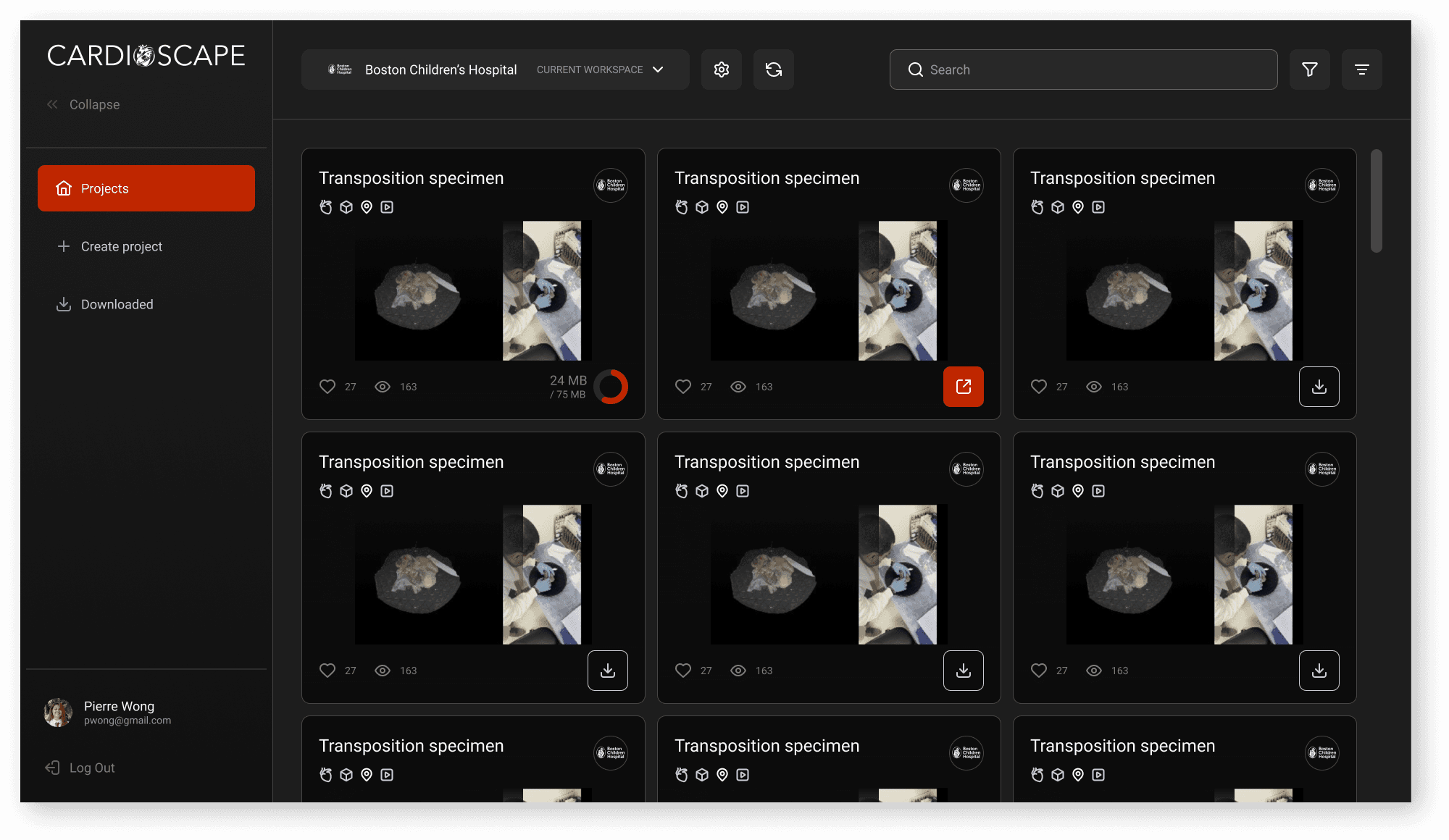
With hierarchy improvements
What Changed
I reorganized the UI to make levels and connections clearer without changing the underlying structure:
The workspace is now surfaced prominently at the top of the content area, making it visually clear that everything below belongs to it
The search bar spans the full content area, signaling that it searches across all projects rather than within a single workspace (the original placement implied the latter)
Subtle tone differences between the sidebar and content area now create a sense of depth, reinforcing a mental separation between navigation and content
Next: How should workspace and project organization work?
Reorganizing the hierarchy surfaced a new open question: the team planned to add workspace content management tools like folders, workspace settings, and project creation, but hadn't fully decided where they belonged. I explored multiple approaches and presented these 3:
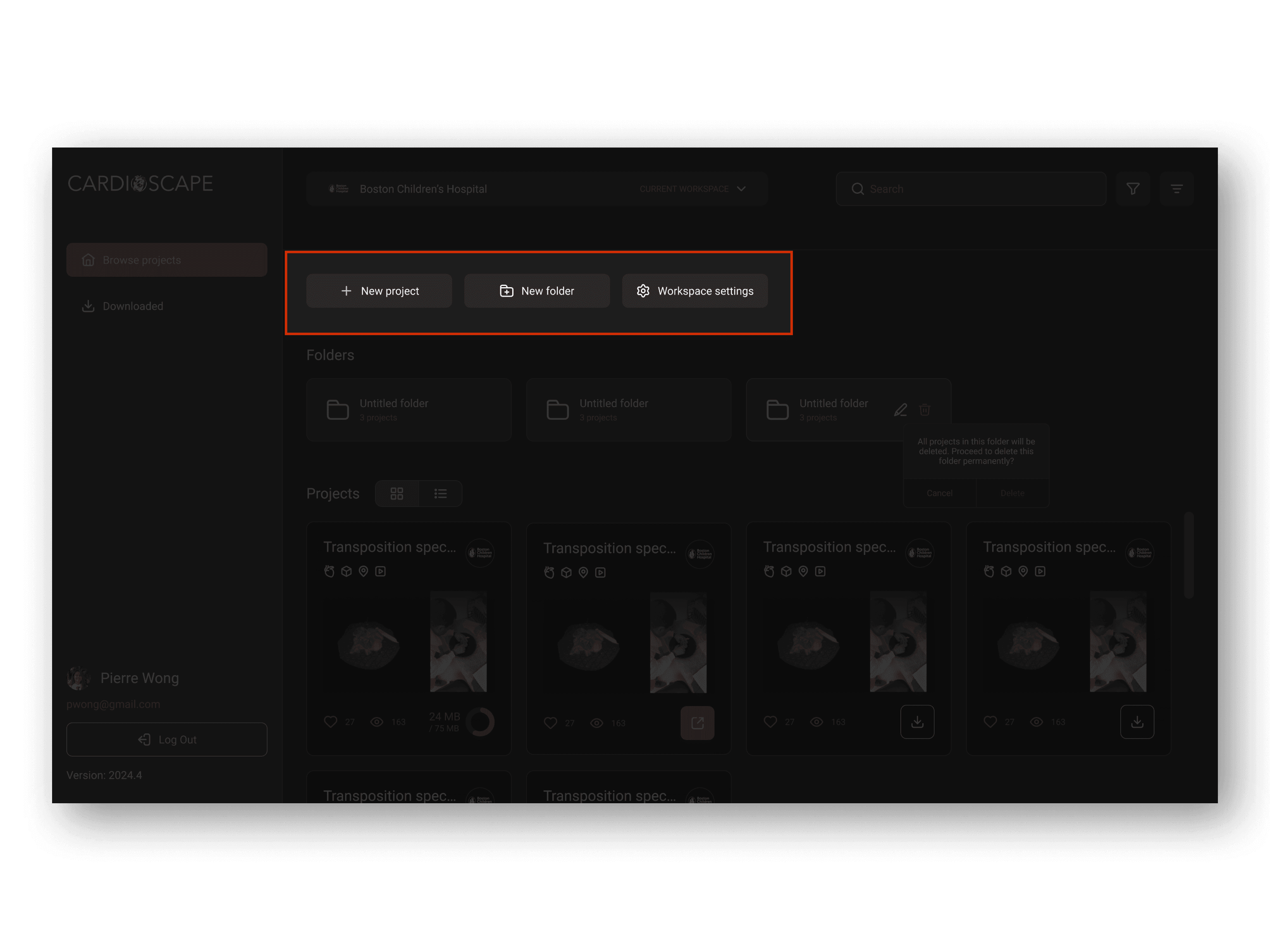
1. Top-level bar containing buttons for projects, folders, and workspace settings
Buttons for projects, folders, and workspace settings collected in a bar above the content area. Closest to the prior version and the most familiar convention, but workspace settings felt out of place grouped with content creation tools since it operates at a different level of the hierarchy.
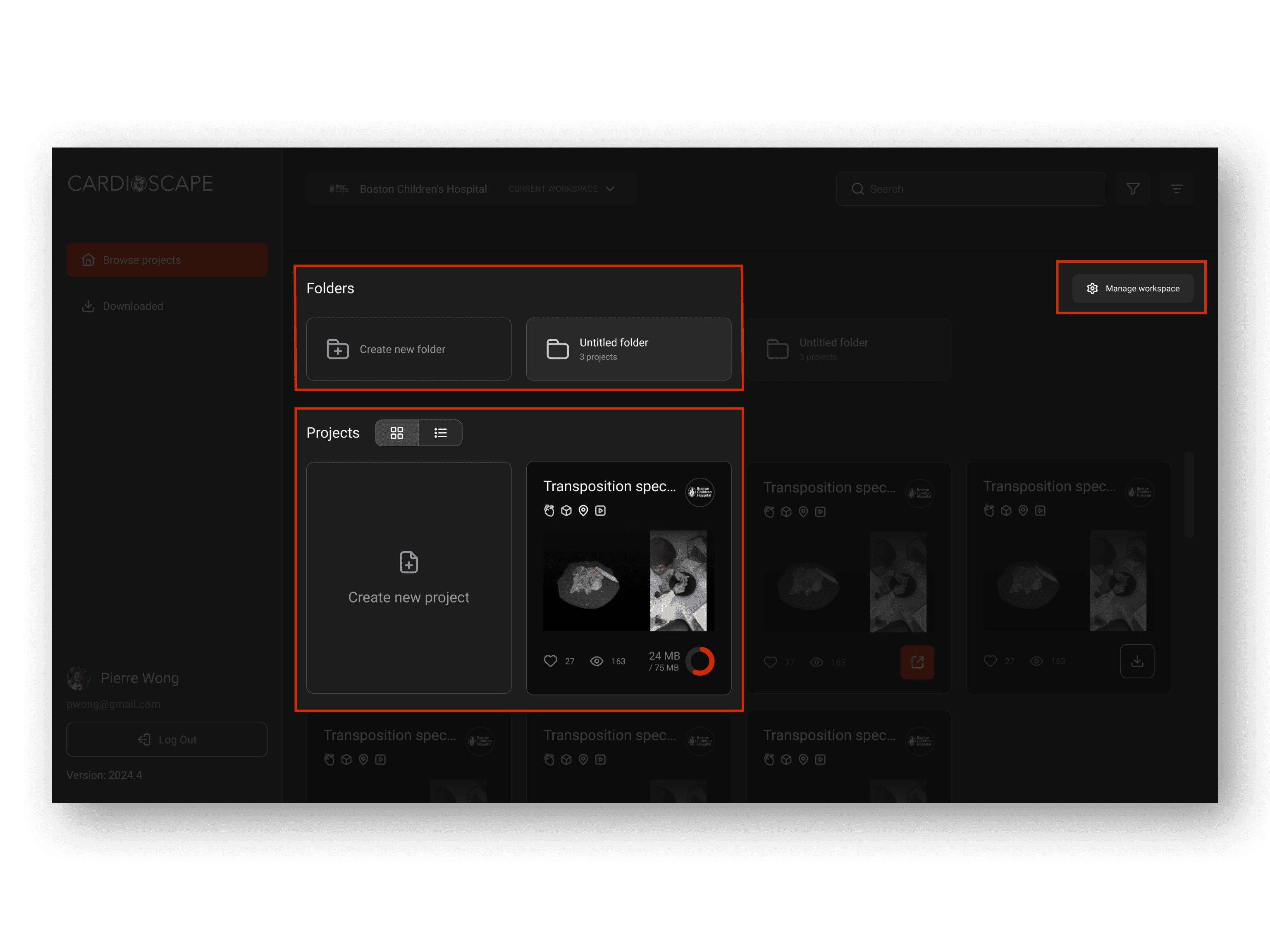
2. Inline card-style buttons with separated workspace settings button
Content management interactions placed inline with the content they affect, with workspace settings separated. The largest surface area of the three – particularly effective in encouraging action rather than leaving a blank state when a workspace is empty.
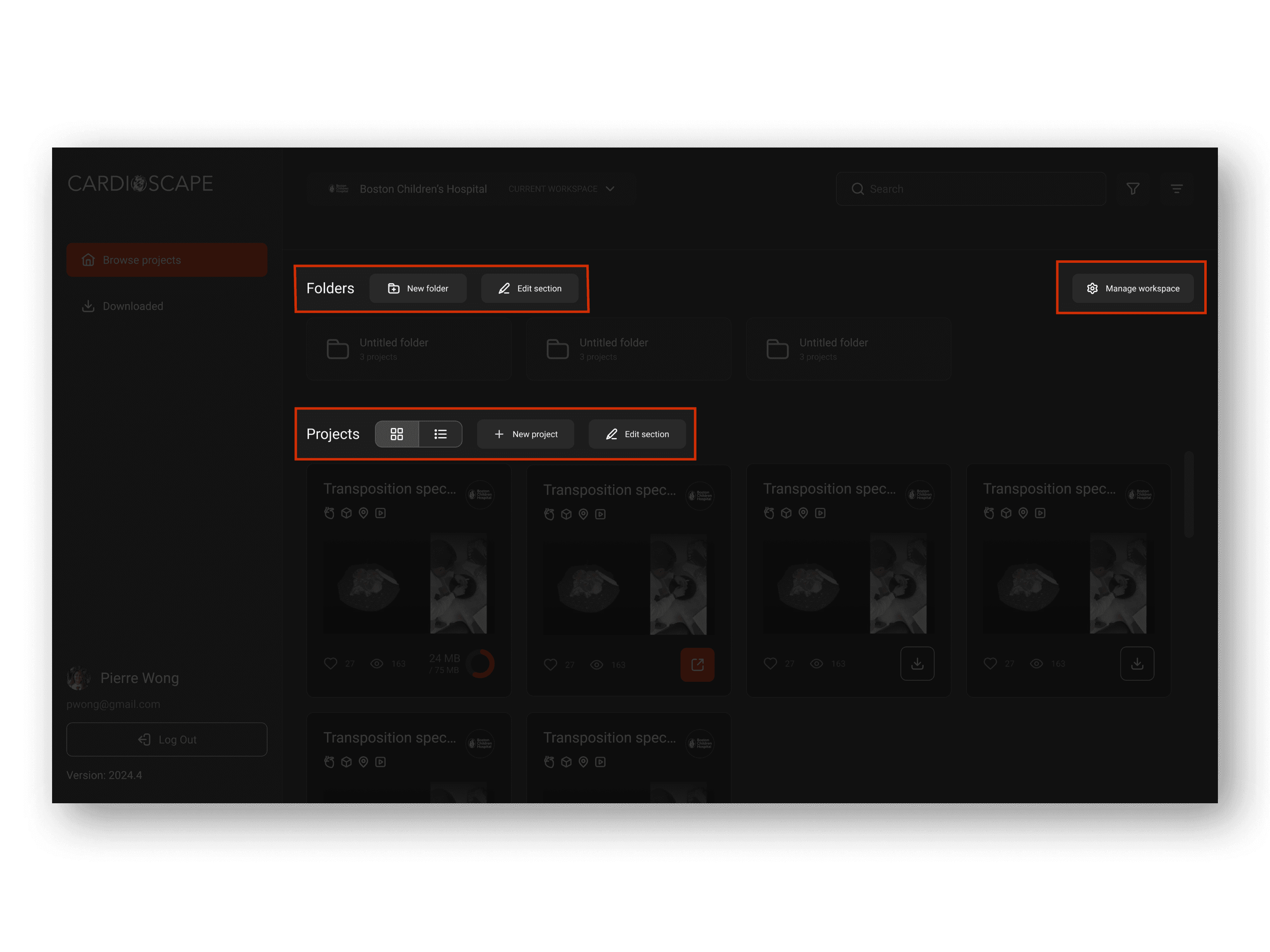
3. Buttons located in their respective sections
Buttons placed at the top of their respective sections (projects, folders) rather than grouped together. An additional "Edit Section" button enables batch-editing within each section. Keeps interactions close to their content while giving power users a faster path to managing multiple items at once.
What I Proposed
Rather than recommending one exclusively, I presented the tradeoffs and proposed a hybrid of versions 2 and 3: placing interactions close to their respective sections while supporting batch-editing. The inline approach handles the empty state problem well, and the section-level edit button scales gracefully as a workspace grows without cluttering the default view.
Across the Rest of the Product
Beyond these three focused problems, I designed across every other surface of the platform:
Gallery: card design with hover states, asset type icons, save and view counts, and a detail drawer with field-specific editing. Iterated on workspace dropdown design and search bar placement before landing on a configuration that kept frequent actions accessible and rare ones (like creating a new workspace) deprioritized but findable.
Login and onboarding: designed and iterated on sign-in and sign-up screens based on direct feedback from the team.
Admin and settings: role-based access controls, workspace settings drawer, user management including invite, join, and leave flows.
UI element terminology: developed a naming system for components across Studio and Standard versions, establishing conventions for how to name shared components with variant behavior across surfaces.
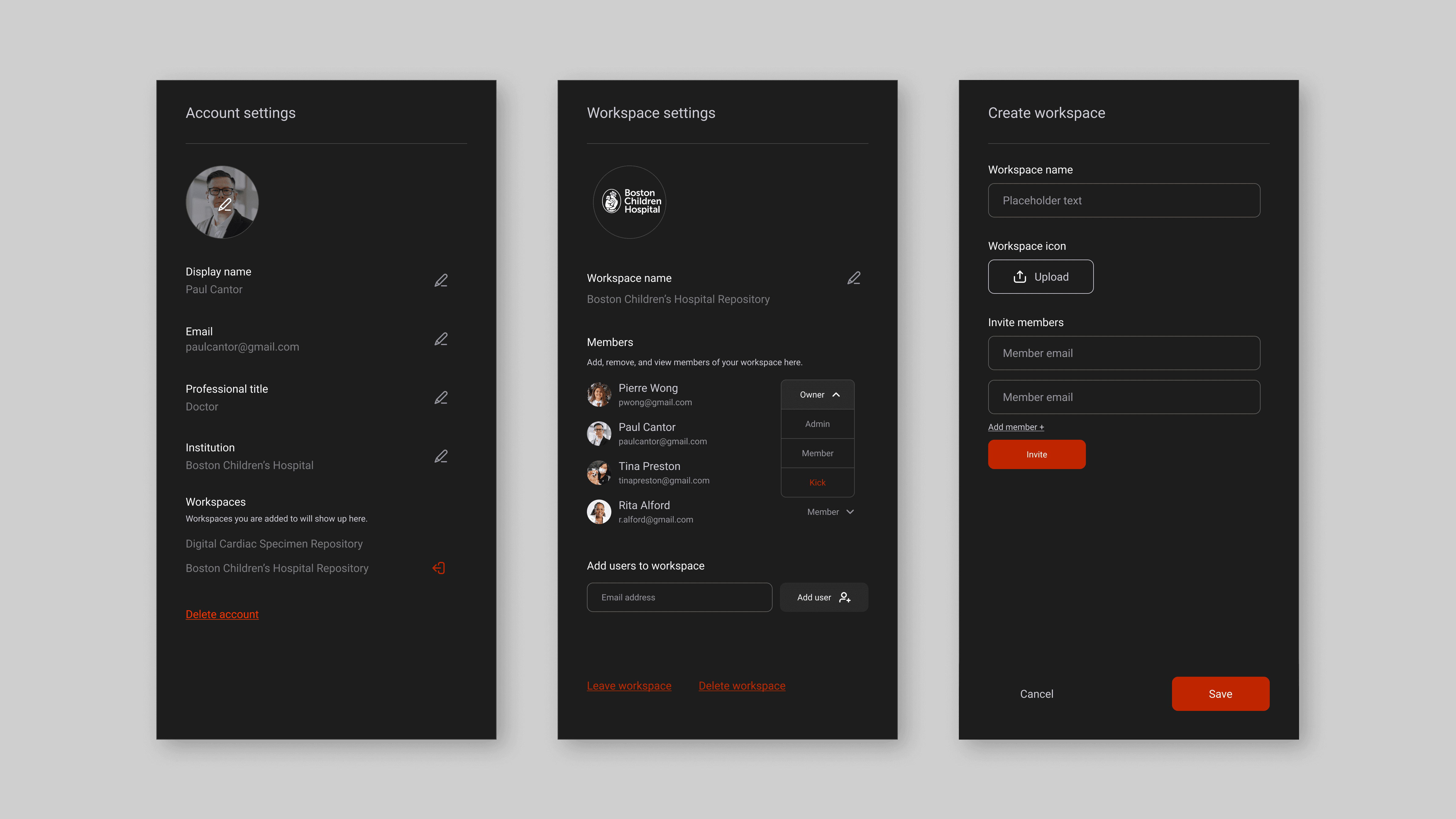
Account, workspace, and project Setup Flow
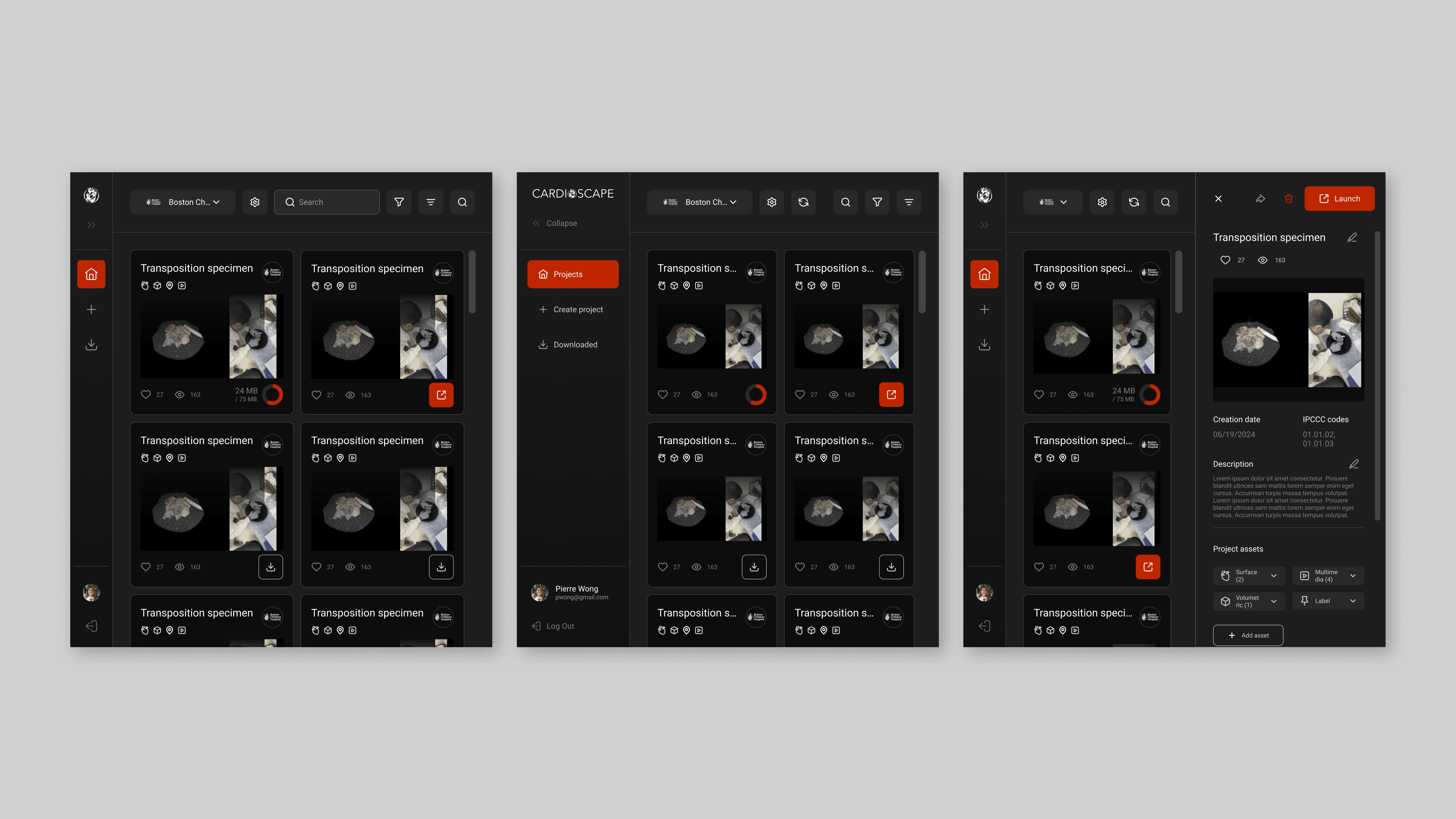
Responsive Gallery Screen
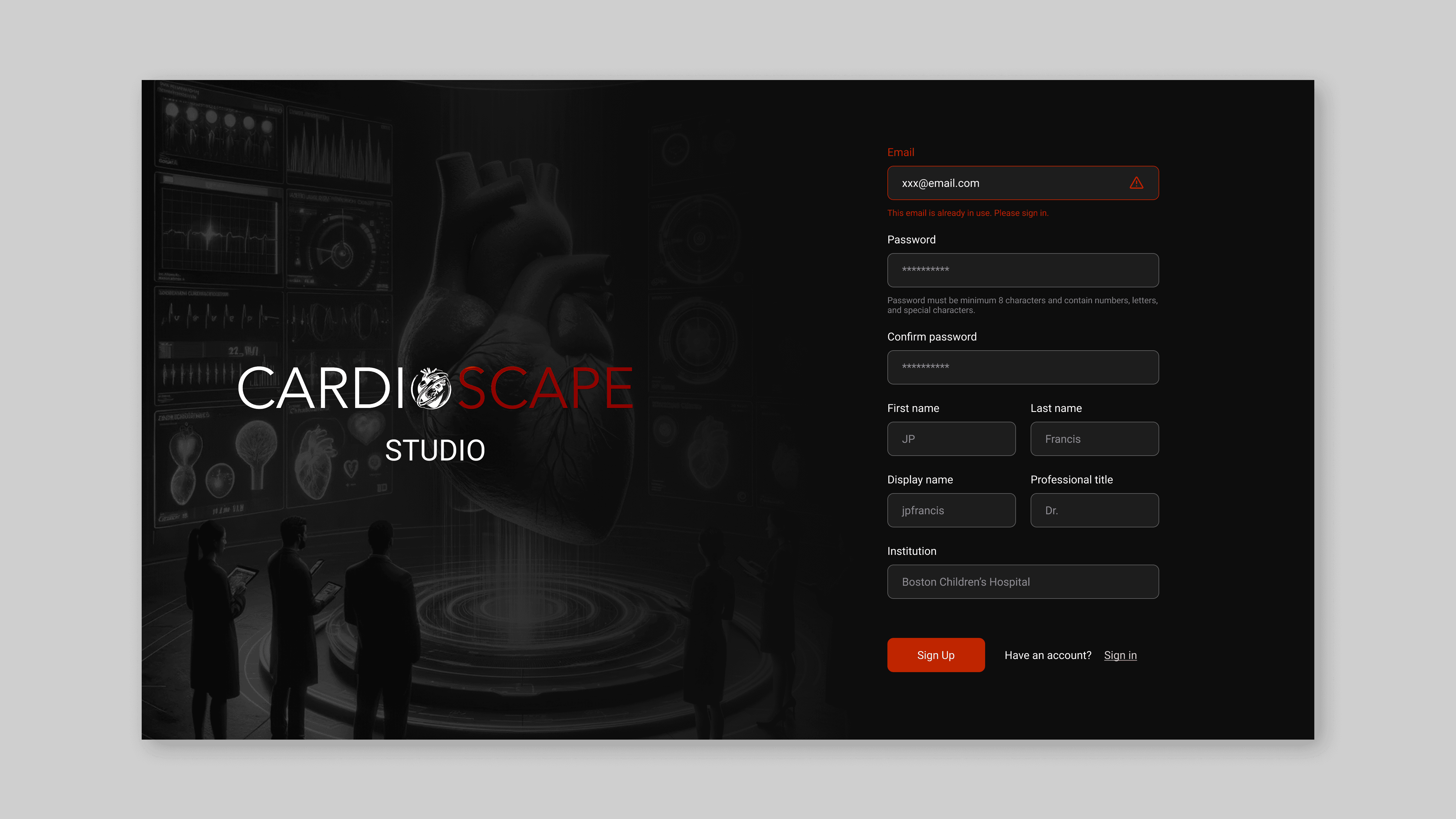
Login Screen
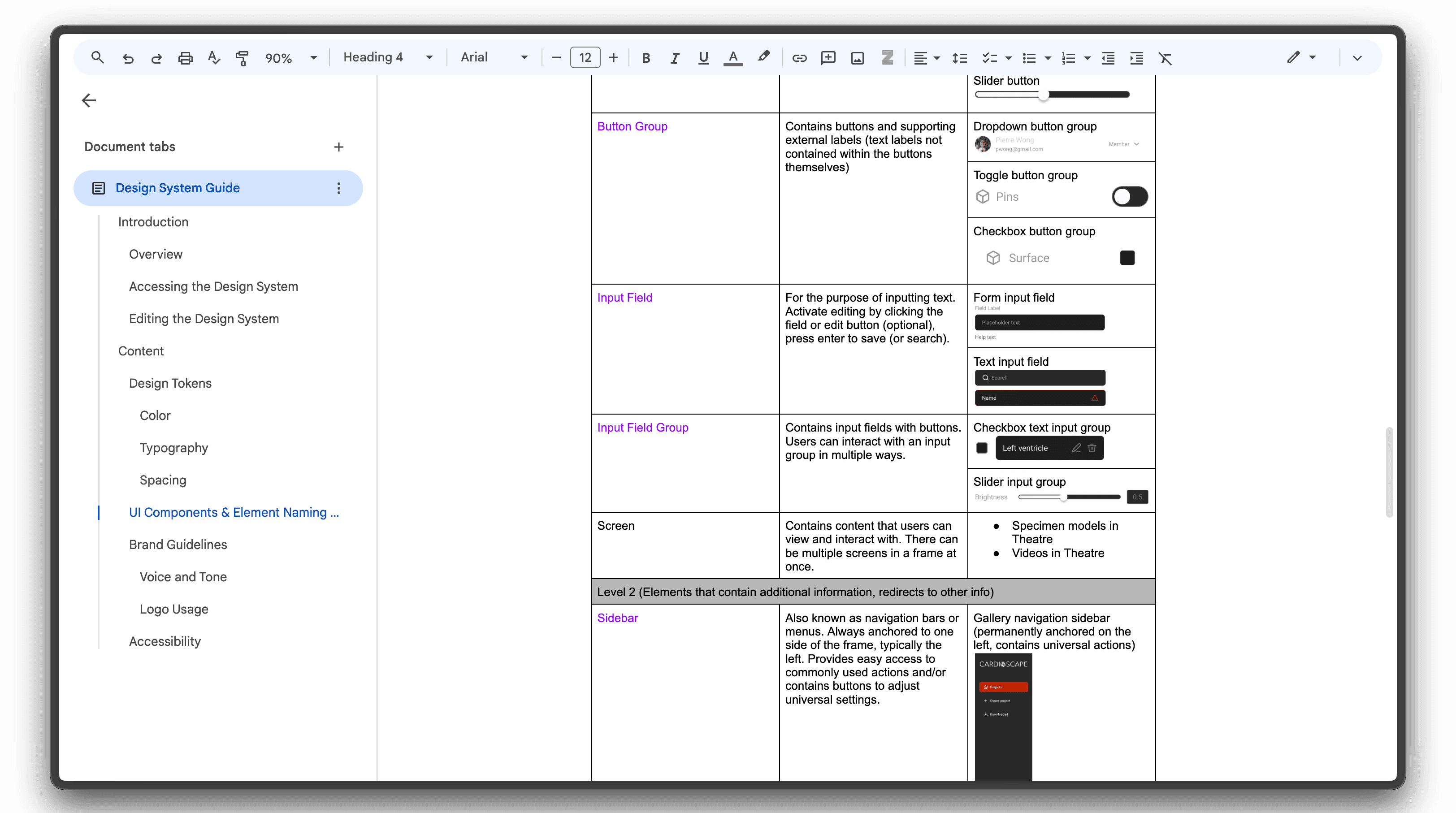
Standardized Element levels & Terminology
Outcome
In five months as the sole designer, I took Cardioscape from a product with no design system and significant UX debt to one with a published, tokenized component library, a prioritized remediation roadmap, and designed UX across every major surface of the product.
The design system gave the engineering team a shared visual language they could build from consistently. The audit gave the team a clear picture of where the product stood and what needed attention in what order. And the feature work – particularly the Studio Theatre architecture and the label annotation system – addressed the most friction-heavy parts of the core user experience.
"Angelina quickly understands the challenges of a feature set, asks questions, and presents thorough and comprehensive ranges of options. She is also eager to leverage advanced tools for prototyping and engage with developers…I look forward to keeping up with her work if not working with her again."
– John Paul Francis, Co-Founder & CTO of Microscape
What I Learned
Get familiar with the foundations
Figuring out a structure that worked for Cardioscape meant learning about things I hadn't encountered before: what IPCCC codes are, how a 220-item classification dropdown behaves differently from a 10-item one, why a surgeon might want to save a specific asset configuration as a project preset, etc. These were inputs the design decisions depended on. Spending significant time asking clarifying questions and researching independently was key, and I would do the same on any future project.
The best design decision is often the one that actually gets built
Working directly and continuously with engineers also shaped how I think about design constraints. Some of the most useful design decisions I made weren't about what looked best, they were about what would be easiest to implement without sacrificing usability, and therefore most likely to actually ship. The drawer-squeeze behavior, the decision to use a secondary layer in the asset browser rather than a full-screen modal, the choice to reuse interaction patterns between Studio and Standard rather than design two separate systems – each of these was a collaboration between what the design needed and what engineering could support.
Push for user research earlier, and be creative about the method
I advocated internally for usability testing and asked for access to existing user feedback, but the team didn't have a formal research process and time constraints meant it didn't happen. If I were starting over, I'd push earlier and think more creatively about methods: remote interviews, asking the team to record surgeons using the product, lightweight guerrilla testing, etc.